How to Download with Curl: Commands, Flags and Fixes
Learn how to download with curl, from basic commands and useful flags to resuming large files and fixing common errors.
Dalvo · November 13, 2026
Run curl -O followed by the file URL, and curl saves the download under the exact name it finds at the end of that URL. One line, no browser, no dialog box, and the archive lands in whatever directory your terminal happens to be sitting in.
It's late, you're SSH'd into a build box, and the release archive you need is several hops away from anything with a graphical interface. You type the command, a progress meter fills and closes, and now there's a file. The trouble starts when that file is 4 GB instead of 4 MB, when the link redirects, or when the server answers with an error page and curl cheerfully saves it as archive.zip anyway.
That gap between "the command returned" and "the bytes on disk are the bytes I asked for" is where nearly every download with curl problem lives. The flags themselves aren't hard. Knowing which ones matter for your situation, and which checks to run once the transfer finishes, is the actual skill.
Table of Contents
- The Fastest Way to Download a File with curl
- Flags That Control Names, Redirects and Errors
- Download Step by Step and Verify the File
- Resuming and Retrying Large Downloads Safely
- Downloading Only Part of a File with Byte Ranges
- Fixing Common curl Download Errors
The Fastest Way to Download a File with curl
curl -O
-O is a capital letter O, short for remote name. curl reads the last segment of the path, tool-1.4.0.tar.gz, and writes the incoming bytes under that exact name in your current directory. The progress meter you see is written separately from the file itself, so a half-drawn meter never corrupts the payload.
When you want to choose the name, drop to a lowercase o:
curl -o /data/tool-latest.tar.gz
The transfer behaves identically. The destination directory has to exist already, though, because curl won't create it for you. Both forms also overwrite an existing file without asking for permission, so look before you rerun a command you've used before.
Two situations break this clean one-liner. A URL that redirects needs -L, and a server that returns a 404 or 403 page needs -f, or you'll save the error page under a name that looks correct. Both get proper treatment below. If the origin judges you by IP address rather than by URL, residential proxy basics explained is worth a read before you start blaming the link.
The command itself has barely changed in decades. Daniel Stenberg rebuilt an existing program called httpget in 1997, and the tool took the name curl with version 4 on March 20, 1998, once upload support made the old name inaccurate, as the curl project history records. It's also far more widespread than many assume: Stenberg's own analysis identified 22,734 of 91,559 Steam titles, 24.8%, using curl, according to his writeup.
Try the simple version now. Fetch a small file with -O, then run ls -lh in the same directory and confirm the size matches what curl -I reported for that URL.
Flags That Control Names, Redirects and Errors
Keep this table within reach for the first week. Every row answers one specific question you'll hit mid-download.
| Flag | What it does | Use it when |
|---|---|---|
| -O (--remote-name) | Saves the file under the name in the URL | The server filename is already the name you want |
| -o FILE (--output) | Saves the file under a name or path you set | You need to rename the file or save it into a folder |
| -L (--location) | Follows HTTP redirects to the final address | The link points at a download page or a mirror that redirects to a CDN |
| -f (--fail) | Exits with an error on HTTP 400 and higher instead of saving the error page | Scripts, pipelines and any download that must not produce a fake file |
| -s (--silent) | Hides the progress meter | Cron jobs and logs where output is noise |
| -S (--show-error) | Shows an error message even when -s is set | Quiet scripts that still need to report failures |
| -I (--head) | Fetches the response headers only, without the body | Checking size, content type and range support before downloading |
| -C - (--continue-at -) | Resumes from the size of the local partial file | A large download was interrupted |
| --retry N | Retries transient failures such as timeouts and HTTP 503 | Unreliable networks or busy servers |
| --limit-rate RATE | Caps the transfer speed | The connection is shared with other work |
| -u USER:PASS (--user) | Sends basic authentication credentials | The file is behind a login you're authorised to use |
| -H 'Header: value' (--header) | Adds a custom request header, and adding headers with curl covers the quoting details | The server needs a token or a specific Accept header |
| -w FORMAT (--write-out) | Prints values after the transfer, such as %{http_code} and %{size_download} | You log results or check them in a script |
-f and -L work as a pair. A redirect can land you on a login page or a rate-limit notice, and without -f that page becomes your file. -s is the other flag that surprises people: it suppresses the progress meter and also suppresses error text, so a silent script that fails says nothing at all until you add -S next to it. And -o and -O can't both be given for one transfer; curl rejects the combination rather than guessing which name you meant.
Practical rule: when you're unsure, add three flags rather than one.
-fSLcovers failure detection, redirect following and a short prompt to fix a typo.
Flags combine into a single group like -fSL with no spaces, and the URL's position relative to the flags doesn't change the result. curl -O -fL URL and curl -fL -O URL do the same thing.
Download Step by Step and Verify the File
Nine steps sounds excessive for fetching one file. On a laptop with a browser, it is. On a server pulling a multi-gigabyte archive over a link you don't control, these steps separate a working pipeline from an archive that unpacks to half its contents and fails an hour later.
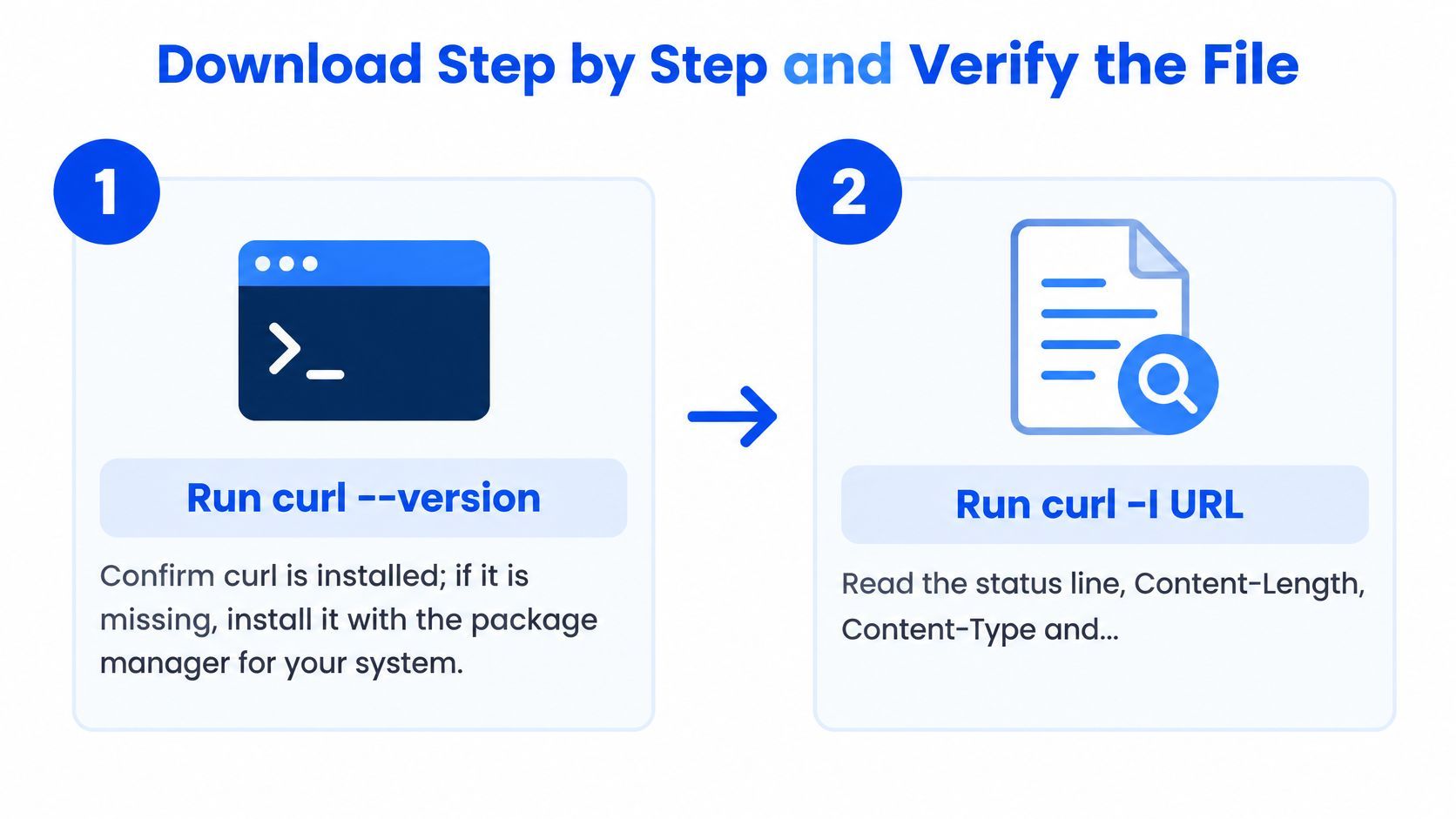
-
Confirm curl is installed and reasonably current.
curl --versionprints the version, the SSL library and the supported protocols. The project ships numbered releases continuously and moves curl and libcurl together; the official version archive records curl 8.0.0 landing on March 20, 2023, the 25th anniversary. A base image stuck on an old build may not support the flags below, so update it with your package manager first. -
Read the headers before you download anything. `curl -I returns the status line, Content-Length, Content-Type and Accept-Ranges without transferring the body. If the output looks cryptic, reading curl response headers walks through what each field means.
-
Choose the filename deliberately.
-Okeeps the server's name;-o /data/archive.zipwrites to a path you set. The folder must already exist, and a trailing slash will confuse you. -
Add -L when the status line reads 301, 302 or 307. Skipping it is how people end up with a 300-byte "zip" that's just a redirect notice.
-
Run the download with -f. `curl -fL -O exits non-zero on an HTTP error instead of writing a fake file.
-
Compare the size on disk with the Content-Length from step 2. A mismatch means the transfer was cut off, and this single comparison catches the classic truncated archive. It's also the check a naive resume breaks: many HTTP/1.1 servers don't support byte ranges and answer a range request with the entire document, as the curl manual page warns.
-
Compare the checksum if the publisher lists one. Run
sha256sum file.zipon Linux orshasum -a 256 file.zipon macOS, then compare the output character by character against the published value. Reading the first eight characters and nodding is not a comparison. -
Ask the file what it is.
file archive.zipshould say Zip archive, not HTML document. For archives,unzip -t archive.ziportar -tzf archive.tar.gzwalks the index without extracting. -
Promote or delete. Only after the size, checksum and format checks pass do you rename the temporary file to its final name. If any check fails, remove it and start over, because a partial file left lying around is exactly what a later resume will happily append to.
The habit that matters most: never let a downloaded file keep a production-sounding name before it has passed a check.
What a completed run looks like
The progress meter reaches 100 percent and closes cleanly, the file appears with the size you expected, and the checksum line matches the publisher's value exactly. Anything short of all three means you restart rather than investigate later.
Resuming and Retrying Large Downloads Safely
The advice you'll find in every tutorial is curl -C - and you're finished. That advice assumes three things that often aren't true: the server honours byte ranges, the remote file hasn't changed since your first attempt, and appending bytes produces a valid file.
Picture a 4 GB dataset that dies at 60 percent. You rerun with resume, it finishes, the filename looks right, and two days later a job fails because the archive is corrupt. Nobody suspects the download, because nothing about the download reported a problem.
A stopped transfer isn't a failure of curl. It's a failure of the assumption that the second attempt is extending the same object.
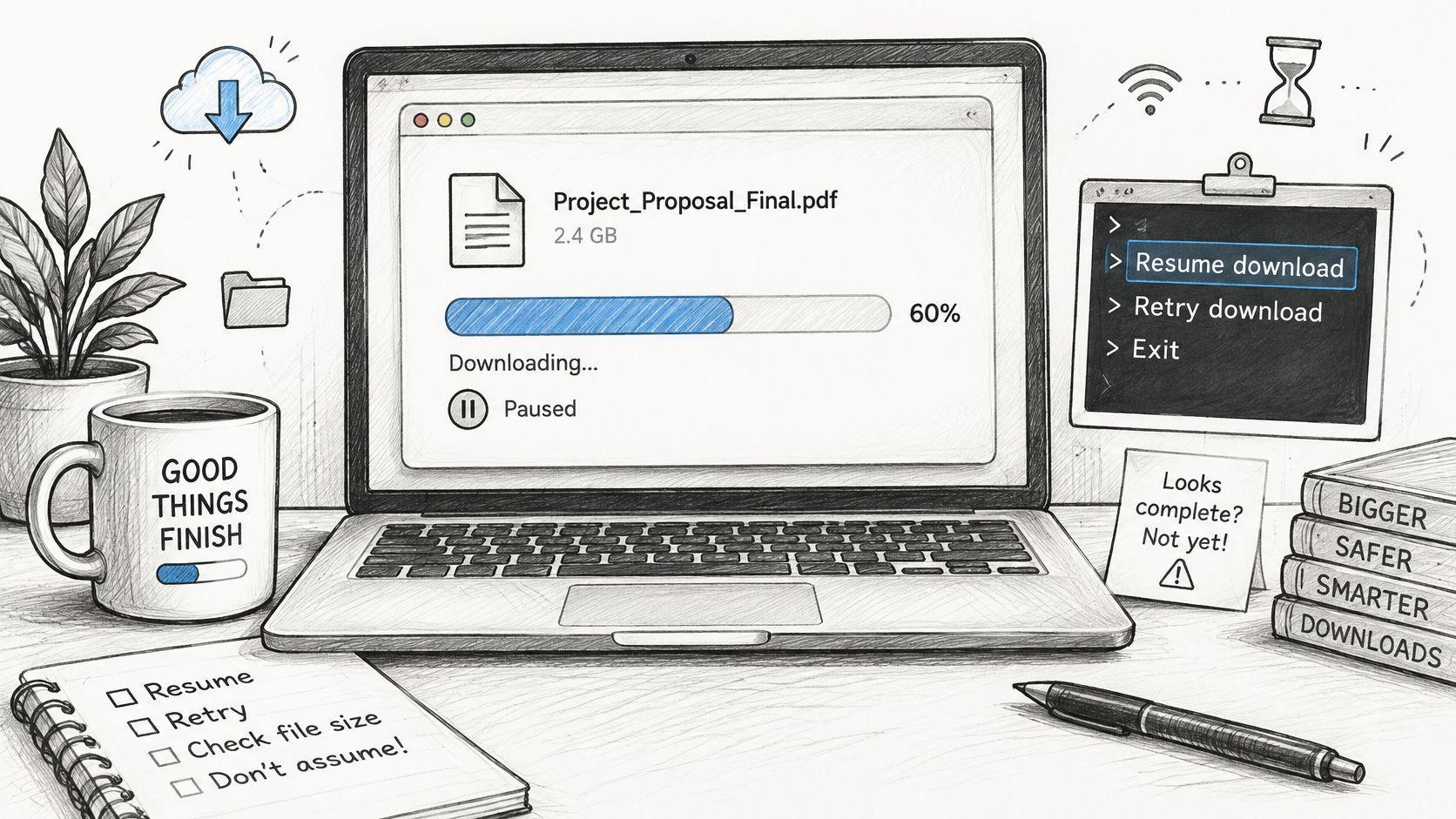
The fix is a staged workflow: save under a temporary name, detect failures explicitly, bound the retries, and only then resume from where you stopped.
curl --fail --location --retry 5 --retry-delay 2 --retry-max-time 300 \
     --continue-at - --output file.part URL
- Write to a temporary name.
file.partcan't be mistaken for a finished artifact by you or by the next script in the pipeline. - Turn on failure detection.
--failand--locationstop error pages and redirects from being written into the payload. - Bound the retries. Five attempts, two seconds apart, capped at 300 seconds total, keeps a flaky endpoint from turning into an infinite loop.
- Resume only after an interruption. Rerun the identical command with
--continue-at -and curl works out the local size, then asks for the remaining bytes. - Verify, then rename. Check the HTTP status and the size, and only then move
file.partto its final name.
curl retries a defined set of transient conditions by default, including timeouts and HTTP 408, 429, 500, 502, 503, 504, 522 and 524, as the curl retry documentation explains. --retry-all-errors widens the net considerably, and it's documented as an aggressive option for good reason: it can repeat requests that weren't safe to repeat in the first place, and it piles extra load onto a server that's already struggling.
Some practical safeguards are worth building in now.
Belt and braces: record the outcome with
--write-out '%{http_code} %{size_download} %{time_total}'and confirm a published checksum before the rename. A retry count is not a success rate.
The resume step depends entirely on server support. A normal range response comes back as 206 Partial Content; if the origin ignores ranges or the object changed underneath you, abort and restart rather than gluing incompatible bytes together. Media pipelines feel this hardest, because a partly written MP4 sits there with a plausible name and only fails later during probing or transcoding.
The mental model to keep: resume is a request, not a guarantee. curl asks the server for the rest of the file, and the server can decline, misread the request, or hand back something that no longer matches the beginning you already have on disk.
Downloading Only Part of a File with Byte Ranges
Bytes aren't seconds. A byte range grabs a slice of the file's raw content, which is useful for reading an archive header, sampling the start of a dataset, or pulling one chunk of a large object across several connections. It's a different operation from resuming, and the two can't be combined in a single transfer.
Start with the header check:
curl -I
Capture Content-Length, ETag and Accept-Ranges. If Accept-Ranges is missing or says none, stop here and download the whole object. Then request a small span:
curl --range 0-1048575 --output chunk.bin
That asks for bytes 0 through 1,048,575, roughly the first megabyte. A correct server replies 206 Partial Content with a Content-Range header naming the span it sent. Compare that against what you asked for before trusting the file.
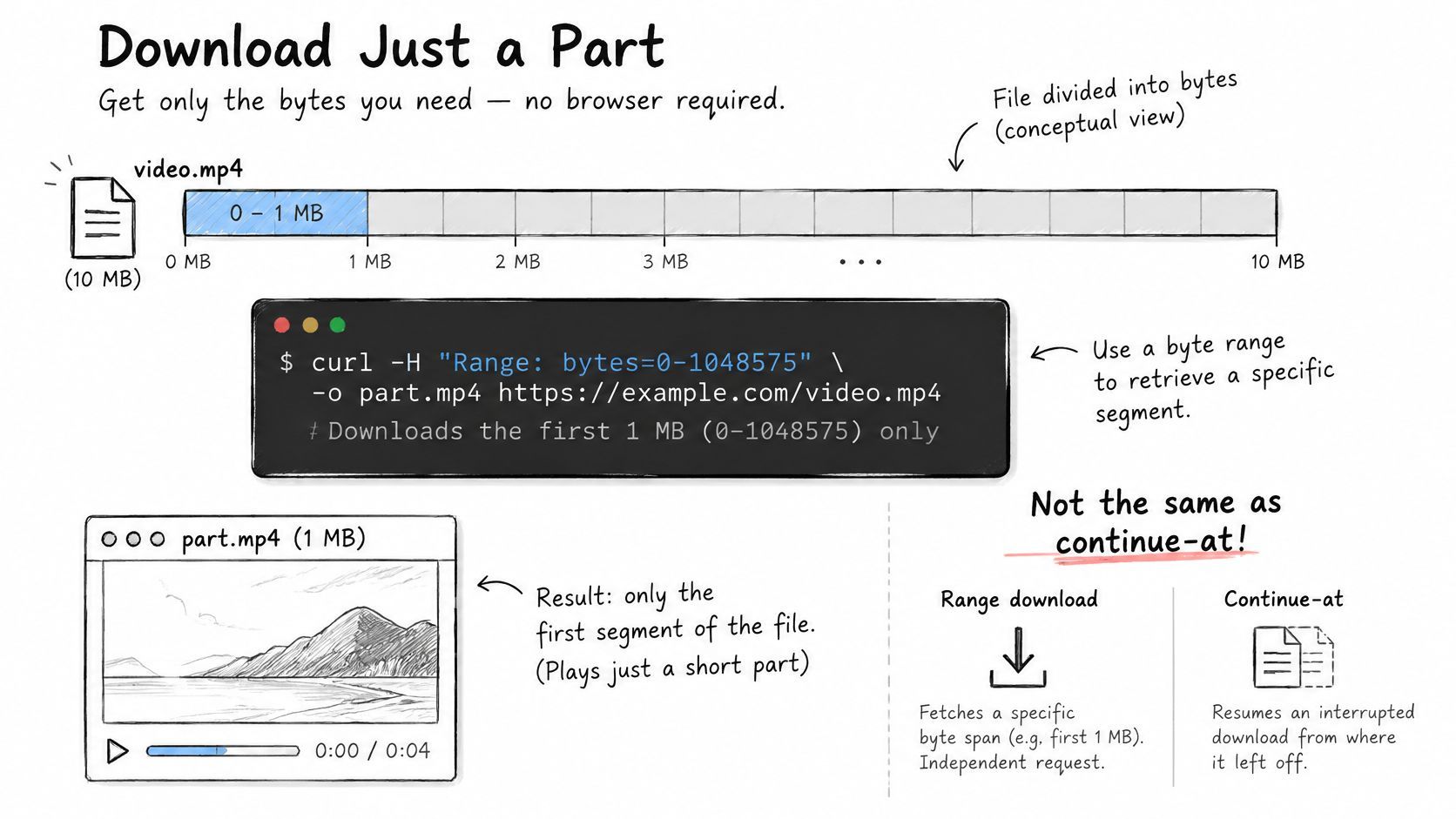
For multi-chunk downloads, fetch the remaining ranges with bounded parallelism, check every offset, and only assemble once a final digest matches. Conditional resumption should carry a validator such as If-Range, since a stored prefix is safe to extend only while the remote representation stays identical. The curl manual is blunt that a server may not support ranges at all or may ignore the request.
Four things go wrong repeatedly:
- The server ignores the range. You ask for one megabyte, get the whole file back with a 200, and never notice because the command exited cleanly.
- Validators are weak or absent. No stable ETag means no safe way to know the object is the same one you started with.
- Transfer encoding compresses the bytes. Byte offsets stop lining up once the payload is being re-encoded in transit.
- A proxy or CDN rewrites the response. What the origin promised and what reaches you can differ.
A zero exit status proves curl finished, not that the range was honoured. Reject a 200 when you required a partial response. And remember that a raw byte range cuts bytes, not time: a video segment needs a format-aware tool such as ffprobe to confirm the result is playable, or a source that clips media at the application level.
Fixing Common curl Download Errors
A 403 or 404 that looks like the file vanished is the first error many encounter, and it's rarely about a missing file. Work through the symptom, the likely cause and the fix.
| Symptom | Likely cause | Fix |
|---|---|---|
| Could not resolve host | DNS failure or a typo in the domain | Check the URL spelling and test the host name with nslookup |
| SSL certificate problem | Outdated certificate bundle or an intercepting proxy | Update the CA bundle; use -k only to test, never in production |
| Saved file is an HTML page | Error page saved with a success-looking status | Add -f so curl exits on HTTP errors |
| Download stops at the same size | Connection dropped mid-transfer | Rerun with -C - and --retry 5 |
| Progress meter fills the logs | Default output in non-interactive runs | Add -s and -S together |
The silent failure is the HTML page saved under a .zip name, because the download reports success and every later step inherits the lie. That single pattern justifies putting -f in almost every script you write. It costs nothing when the server behaves and it converts a corrupt artifact into a visible error.
Some fixes are flags you add. Others need a clean restart, and the resume errors fall into that second group. curl error 33 on a resume means the server won't do byte ranges, and the only correct response is to delete the partial file and start again, not to force the append and hope. The same applies when the remote size or timestamp changed since your first attempt.
When the block is IP-based rather than credential-based, a mirror rejecting your datacenter address or a CDN rate-limiting the whole subnet, the fix is routing through an exit the origin accepts. Configuring a proxy with curl covers the flag and its syntax.
Read the error, decide whether it's a flag problem or a state problem, and never let a failed download keep a filename that suggests it worked.
When you're wiring a download step into a product rather than a terminal, the same rules apply: fetch from a URL, check what came back, handle the failure. Vid Kraken takes that work off your plate for YouTube sources, queueing a video with a POST request and returning a plain HTTPS download link you fetch with the same curl command you've been using all along, with retries, cookies and bot checks handled on our side. Failed downloads aren't charged, so a rejected video costs you nothing but an error code to read. Visit Vid Kraken to see the API and the command-line tool in action.