YouTube Audio Downloader: Formats and Permitted Uses
Compare YouTube audio downloader formats (MP3, M4A, original stream), see what restrictions apply, and pick a permitted workflow for your project.
Dalvo · October 30, 2026
What if the file a YouTube audio downloader should hand you is the one you never re-encode? Most write-ups treat a 320 kbps MP3 as the finish line, as if a larger bitrate repaired a source that was already compressed. It doesn't. The number describes the file you just wrote, not the track already stored with the video.
For a lecture, a dubbed interview, or an archive, that extra encode can be the wrong move. A permitted workflow picks the representation the next tool can use, records why the audio may be kept, and treats an access error as a stop rather than a puzzle to route around.
Table of Contents
- Choose Format and Audio for Your Downstream Task
- Check Rights Before You Download Any Audio
- How to Extract Audio Only for a Permitted Workflow
- Access Limits and What Each Error Code Means
- Pick a Permitted Workflow Before You Start
Choose Format and Audio for Your Downstream Task
Match the output to the tool that will open it. A YouTube audio downloader that always emits the same MP3 is optimizing for a player, not for transcription, dubbing, or an archive.
| Format | Re-encoding | Best use | Approximate size per minute |
|---|---|---|---|
| MP3 at 320 kbps | Re-encoded, lossy | Players, editors, universal sharing | 2.4 MB |
| M4A (AAC) | No re-encoding of the AAC stream | Apple devices, most editors, smaller files | About 1 MB |
| Original audio stream | No re-encoding | Transcription, dubbing, archives | Unknown until measured |
MP3 at 320 kbps is decoded and written again, so it stays lossy even when the label looks premium. Phones, desktop players, and editors that expect MP3 will open it without a codec fight. The encode adds no quality the source did not already have. The arithmetic is plain: 320 kilobits per second is 2.4 MB per minute, so a 90-minute lecture is about 216 MB as MP3.
M4A (AAC) is typically the AAC stream already on the video, placed in an MPEG-4 audio container. You skip a second conversion of that stream, and the file lands near 1 MB per minute. It plays on Apple devices and in most editors. Pick it when you want a smaller handoff and nobody has demanded MP3.
The original audio stream is delivered with no re-encoding, so source fidelity stays intact. Its size follows the track, which means you mark it unknown until the finished file is measured. A fixed bitrate would only describe a new encode, not this one.
Speech work
Transcription and speech analysis should keep the original stream. Another lossy pass adds artifacts before a recognizer ever sees the words. I would not spend that encode unless the speech tool refuses the source codec and container.
Dubbed tracks
For dubbing, request a track by language tag and decide first whether falling back to the original audio is acceptable. Resolving audio tracks requires a full extraction, which is slower and can occasionally fail on hard-to-reach videos. Set a longer timeout, and retry only transient failures, not a language that was never on the video. The multi-language audio track request shows how a preferred tag is chosen before you wire it into a pipeline.
Clips versus the master
Clipping should request only the start and end you need. Archiving should store the original stream, any derived MP3, and the metadata as separate records, so a delivery file is never mistaken for the master.
Say a 40-minute interview needs a 3-minute segment for a social clip, while the full original stream is kept for the transcript. Export those three minutes as M4A for the editor. Leave the master untouched so the transcript is not built on a second-generation MP3.
Practical rule: Keep the original when the next tool accepts its codec and container. Use MP3 when a recipient needs a universal file. Use M4A when you want a smaller file without a second conversion.
Check Rights Before You Download Any Audio
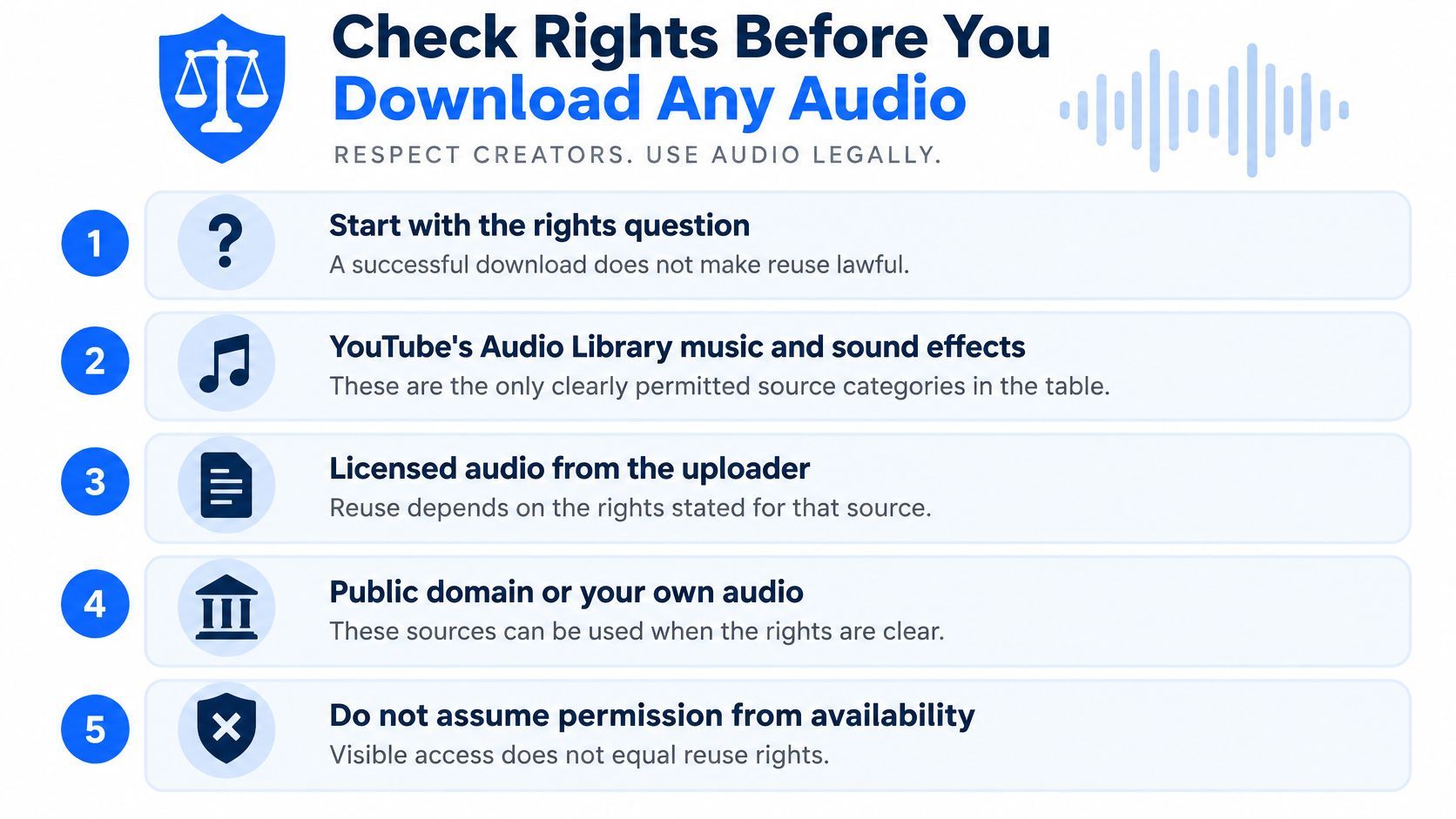
Does a playable YouTube video give you the right to reuse its audio? No. Technical access and permission are separate. A public watch page does not grant reuse rights, whether the file is headed for a clipping tool, a transcription pipeline, or an archive.
YouTube's copyright guidance says music and sound effects in its Audio Library are known to be copyright-safe. Material described as “royalty-free” elsewhere can still carry restrictions. Rights holders may block material, change its permitted uses, or issue takedown notices. YouTube does not grant permission to reuse protected material.
| Source | Usually permitted | Record to keep |
|---|---|---|
| YouTube Audio Library music and sound effects | Yes, subject to the applicable terms | License and attribution details |
| Your own uploaded content | Yes, if you hold the rights | Proof of ownership |
| Creator-authorized material | Yes, within the license terms | Written permission and its scope |
| Public-domain material | Usually, subject to jurisdiction | Source and public-domain status |
| Royalty-free tracks from third-party libraries | Check the license terms | Full license text, since restrictions may apply |
| Other creators' music or videos | Only with permission or a license | Permission record, or flag for review |
What to save before the request
- Record the source type. Note whether it is Audio Library material, your upload, public domain, creator-authorized, from a third-party library, or another creator's work.
- Keep the permission text. A license should make clear its scope, including territory, term, and whether re-encoding is allowed.
- Store attribution with the file. Keep required credit alongside the audio, where it stays with the asset.
- Flag ambiguity. If the rights or license terms are unclear, hold the item for review rather than processing it.
A regional block or later takedown can affect whether a stored file remains usable. Read the terms that apply to your use, and keep rights records separate from download records. If you already have authorization and need a common delivery format, this guide explains how to convert authorized downloads to MP3.
The short video below reinforces the distinction between being able to play audio and having permission to reuse it.
If you cannot identify the source and its permission basis, do not download the file.
How to Extract Audio Only for a Permitted Workflow
A permitted audio workflow starts with a specific source and a defined output. Validate each video before requesting a file, and keep the checks tied to the job.
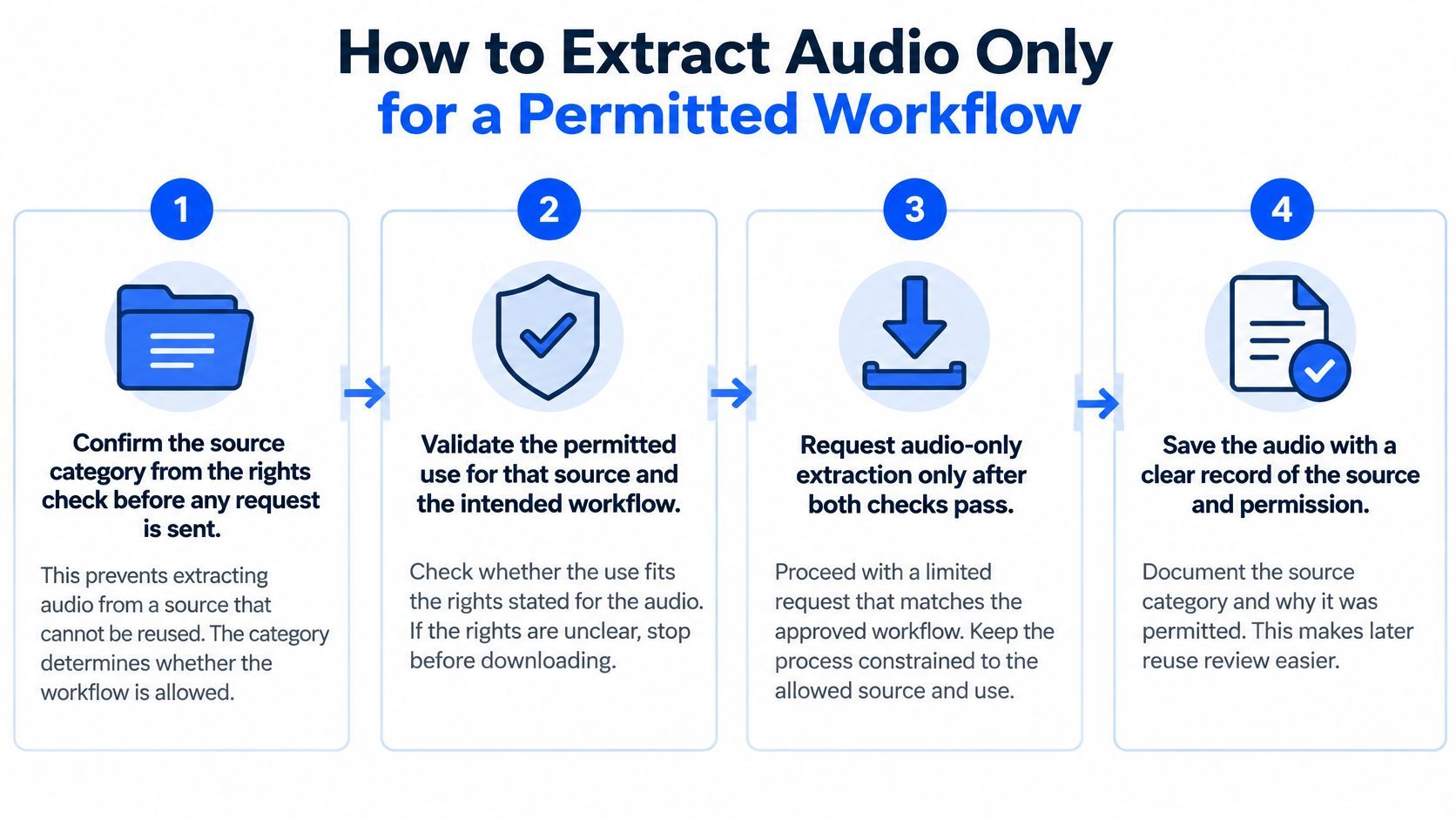
- Confirm the source category before submitting a request. Record the permission or licence for the audio.
- Validate the video identifier and retrieve its title and duration. The duration sets the upper limit for any requested clip.
- Parse the ISO 8601 duration into milliseconds. The YouTube videos resource represents a duration such as
PT15M33Sas 933,000 ms. Use that value to check the clip window. - Set start and end times, then reject negative, reversed, or out-of-range intervals. A valid window must fit within the video's duration.
- Choose the output for the next tool. Keep the original stream if the tool accepts its codec and container. Request MP3 when the delivery workflow requires an MP3 file. Stream copy avoids a decode-and-encode pass; transcoding is useful when the destination requires a different format. Compare YouTube audio extraction methods against the formats your pipeline accepts.
- Submit the YouTube URL to
POST /api/v2/download. The response immediately returns a job ID, video title, and duration. - Poll
GET /download/{jobId}until the status is COMPLETED or FAILED. Jobs run asynchronously. If an accepted download fails, the status response reports the failure. - Probe the finished file before delivery. Check its duration against the requested interval, confirm the codec and bitrate, and reject silent or truncated output.
- Save the file to your own storage. Completed outputs are provided through temporary download links that expire automatically.
For a clip, compare the probed duration with the requested start and end times. If they do not match, rerun the job rather than passing an incorrect file to editing.
Access Limits and What Each Error Code Means
A machine-readable error code lets your client distinguish access restrictions from videos that may be worth retrying.
| Error code | What it signals | Permitted response |
|---|---|---|
| PRIVATE_VIDEO | Access limited by the owner | Request the file from the owner or choose another source |
| AGE_RESTRICTED | Viewer age check required | Do not bypass; request an authorized copy |
| MEMBERS_ONLY | Requires channel membership | Ask the creator for access or a licensed file |
| GEO_RESTRICTED | Blocked in the region | Check licensing for your region before any use |
| DRM_PROTECTED | Protected stream | Treat as not downloadable; no workaround |
| VIDEO_UNAVAILABLE | Removed or inaccessible | Retry after a delay, then log and move on |
The policy line
YouTube's developer policies state that API clients must not download, import, back up, cache, or store copies of YouTube audiovisual content without prior written approval, or make that content available for offline playback through the API. The policies also prohibit using YouTube API services to facilitate or promote copyright infringement.
Encoding quality does not change those limits. Technical access does not establish ownership or permission. Proceed only when you can identify a valid basis, such as a file the user owns or a download licensed by the rights holder.
How the failure reaches your code
A download can be accepted and then fail during processing. In that case, the status response says FAILED and includes an errorCode for the video. Handle the result in the polling loop, not only in the request handler. Codes such as AGE_RESTRICTED, MEMBERS_ONLY, GEO_RESTRICTED, PRIVATE_VIDEO, DRM_PROTECTED, and VIDEO_UNAVAILABLE let your client branch explicitly. Keep the YouTube download API error-code reference beside the client implementation.
Retry VIDEO_UNAVAILABLE after a delay, since removal or a temporary outage may produce the same initial result. Do not repeatedly retry PRIVATE_VIDEO or DRM_PROTECTED. A geographic restriction or membership requirement is an access limit, not a reason to route around it.
Store the error code, video ID, timestamp, and rights decision together so a flagged item can be reviewed without replaying the job.
Pick a Permitted Workflow Before You Start
Choose one workflow and refuse the others until the record is clean.
- Your own file. Personal use of audio you uploaded, or a recording you already hold off-platform.
- A product feature. User-owned or licensed video only, with the licence scope stored beside the job.
- A research archive. Material you have rights to keep, and nothing that arrived because it was public.
Run one clip end to end before you automate the queue. Confirm the source category, record the licence, pick the format the next tool accepts, extract that range, probe the output, and log any error code. If you ship a SaaS import, a transcription or dubbing pipeline, or a clipping tool, judge a managed API by the same list: the formats you need, clip ranges, and structured failures. No tool makes restricted or unlicensed material usable. That decision stays with your team.
The download is the easy part, and the permission is what makes the file usable.
Vid Kraken is a managed YouTube download API for software teams that need audio they are allowed to keep, as a 320 kbps MP3, an AAC file in M4A, or the original stream, including a start and end time when only a clip is required. We run the download infrastructure, return a job you can poll, and hand back a temporary HTTPS link once the file is ready, with machine-readable codes when a video cannot be fetched. If that matches the permitted workflow you just defined, visit Vid Kraken.